Care Ready keeps key information about someone you care for on your iPhone. You can use it to prepare a brief when another person needs that information.
New to Care Ready?
Follow Maya Example, a made-up person, through each step. Use a sample photo and invented details while you practice.
Care Ready 1.0 is in private testing on iPhone and is not yet in the App Store. Until it is, practice with made-up details, as this guide does.
Three words you’ll see in the app
Profile
The information you keep about a person, such as their photo, care needs, and contacts.
Brief
A summary you prepare to share for a particular situation. You review it before sending it.
Backup
A protected copy of your saved information that you can use to restore records.
The two types of briefs
Everyday Care brief
For planned care, such as a caregiver handoff, respite care, or an appointment. It shares the person’s care needs, routines, and helpful instructions.
Emergency incident brief
For an urgent situation. It combines the person’s profile with current incident details to share with responders. Call 911 first when emergency help is needed.
Both types can be previewed, printed, or shared as an HTML document—a file that opens in a web browser. You review the brief and choose whom to share it with.
Maya Example is fictional. In this walkthrough, a family member will care for her this afternoon.
Create your first profile
Care Ready keeps a separate profile for each person. Practice with Maya first.
Before you begin
Have a photo ready and make sure your iPhone has a passcode. A photo, full name, and date of birth are required. Everything else is optional and can be added later.
Swipe up to see fields farther down a screen. The profile is saved when you tap Save encrypted profile on the last screen. If saving fails, stay on that screen and try again; your entries and photo remain there. Leaving before a successful save loses them, because there is no saved draft.
1
Open Care Ready.
Unlock with Face ID, Touch ID, or your iPhone passcode when asked. You do not need a Synodos account or a separate app password.
2
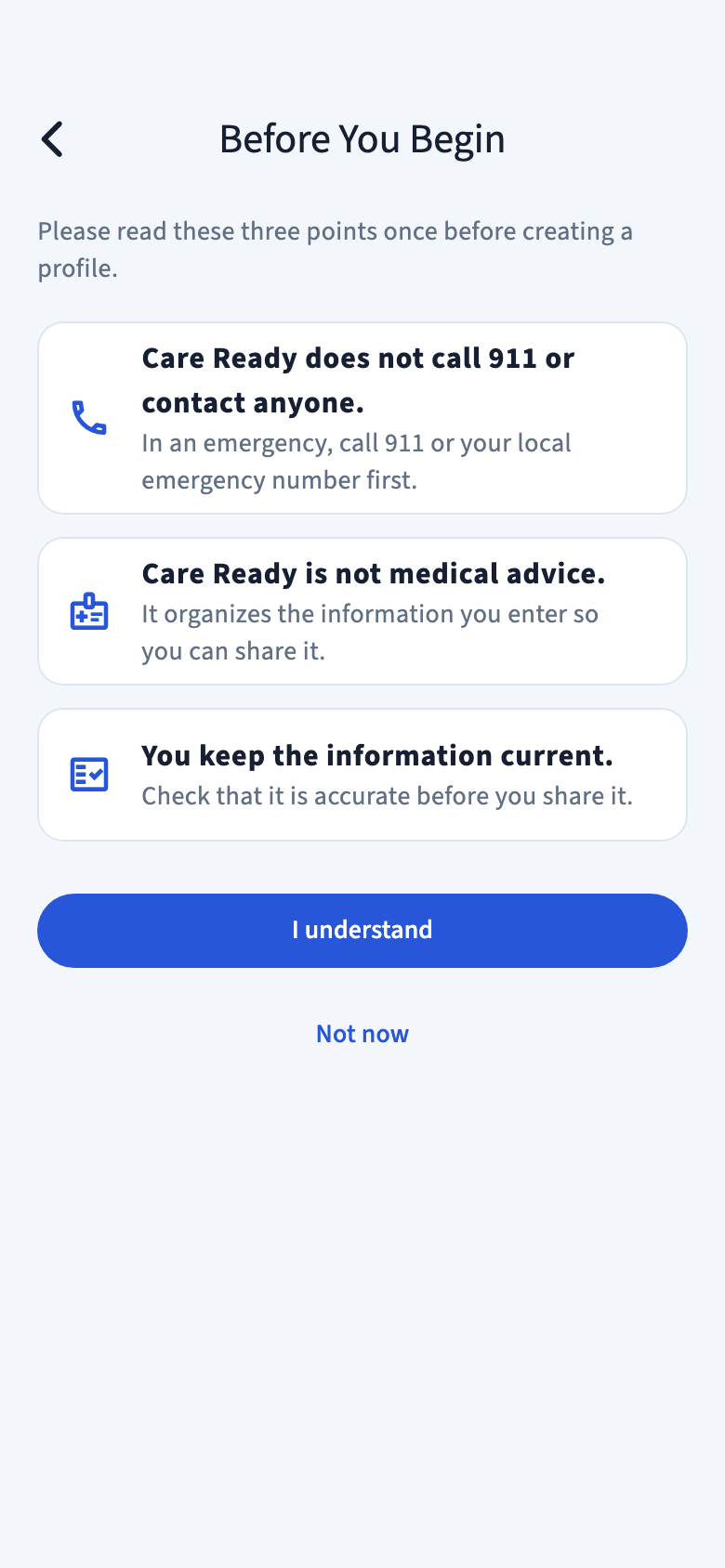
Read Before You Begin.
The first time you create a profile, Care Ready explains three things: it does not call 911 or anyone else, it is not medical advice, and you keep the information current. Tap I understand.
3
Tap Create Care Ready Profile.
This starts the five setup screens below. Next moves forward, and the back arrow returns to the previous screen.
Shown once, before your first profile.Enlarge screenshot
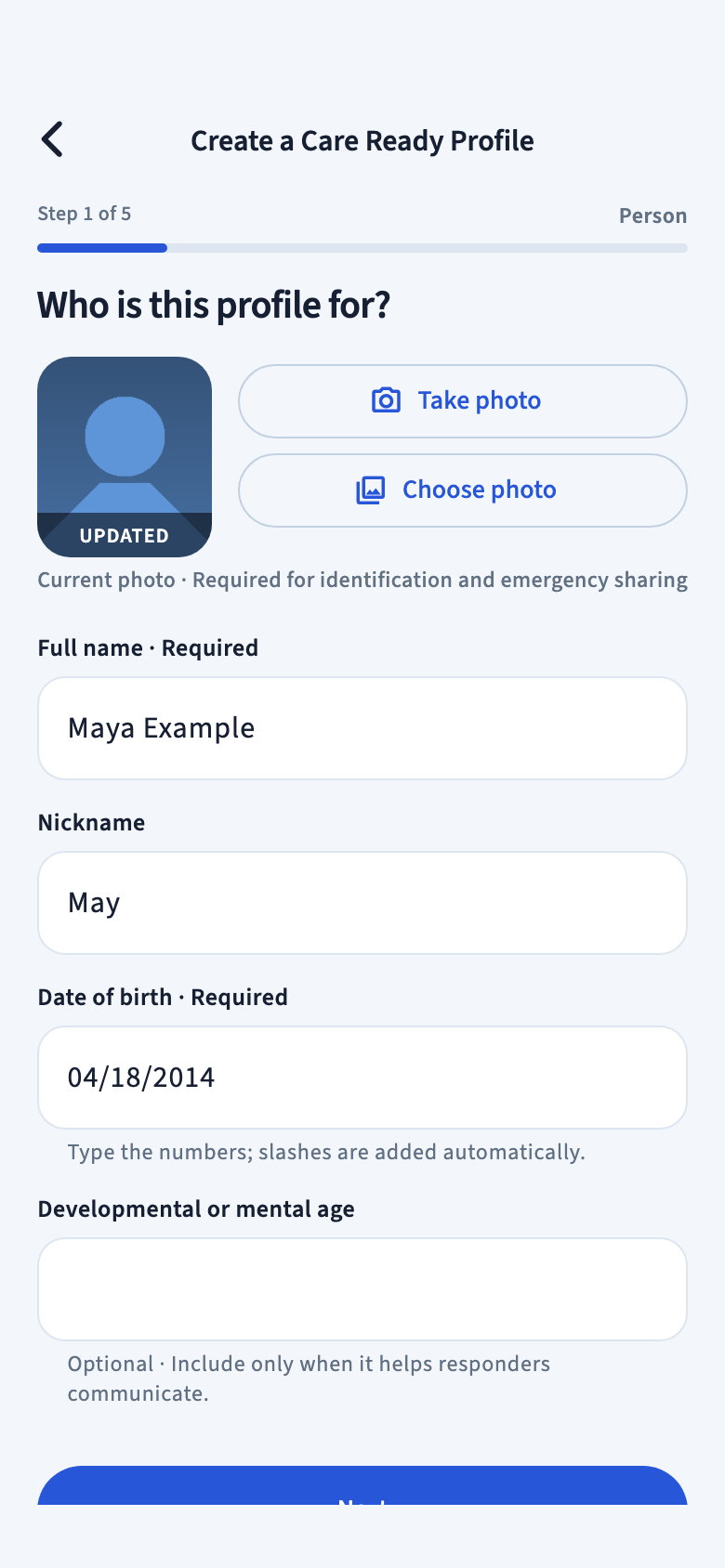
SETUP SCREEN 1 OF 5
Who is this profile for?
Tap Choose photo to pick a photo, or Take photo to use the camera. Allow photo access when asked.
Enter the Full name and Date of birth. For April 18, 2014, type 04182014; the app adds the slashes. Nickname and developmental or mental age are optional.
Next: tap Next. You should see Identity and appearance.
Screen 1 with Maya’s fictional details.Enlarge screenshot
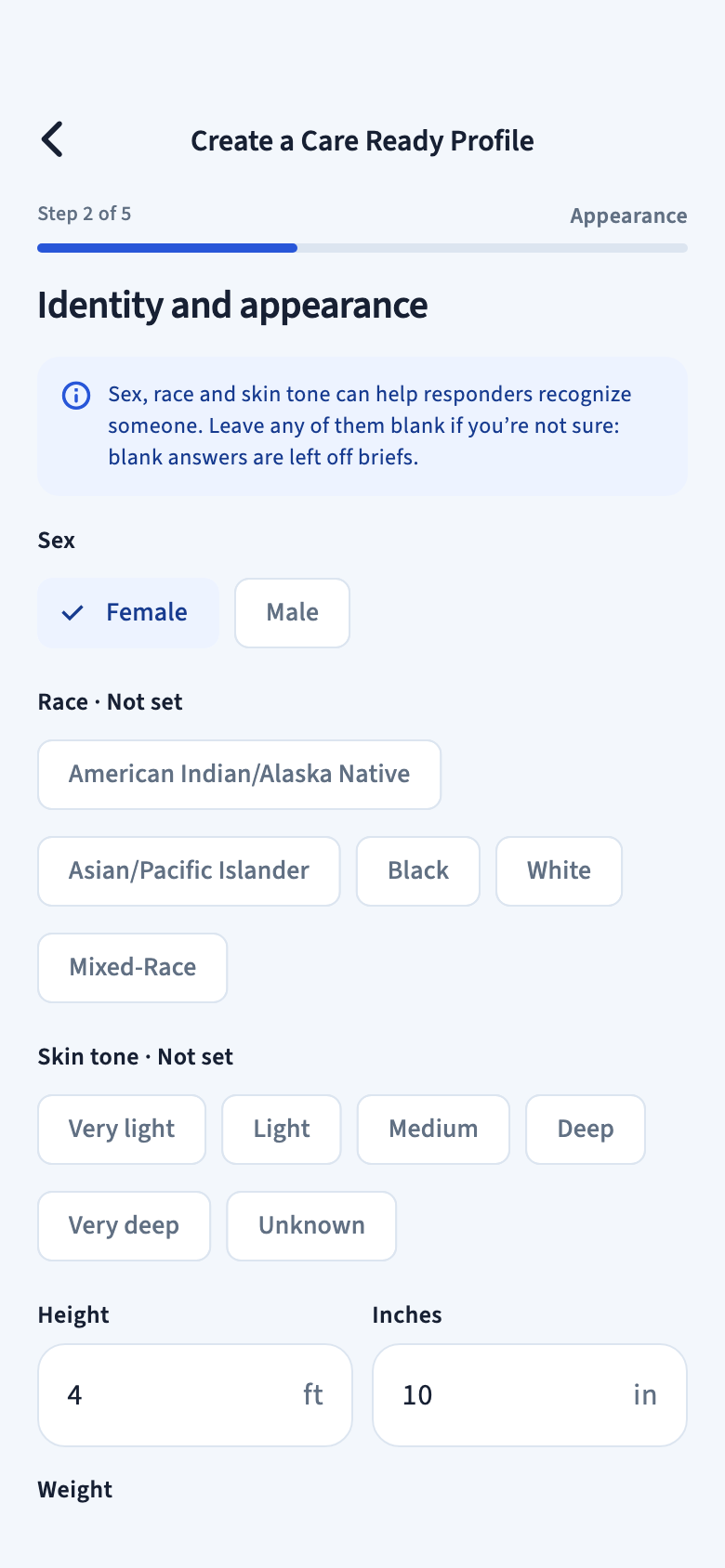
SETUP SCREEN 2 OF 5
Identity and appearance
Tap the answers you know for Sex, Race, and Skin tone. Nothing is chosen for you: an answer left as Not set is left off briefs. Tap a chosen answer again to clear it.
Add height, weight, hair and eye color, and any birthmark or scar. These help someone recognize the person.
Next: tap Next. You should see Safety and support.
Only Sex has been chosen here; Race and Skin tone are left as Not set.Enlarge screenshot
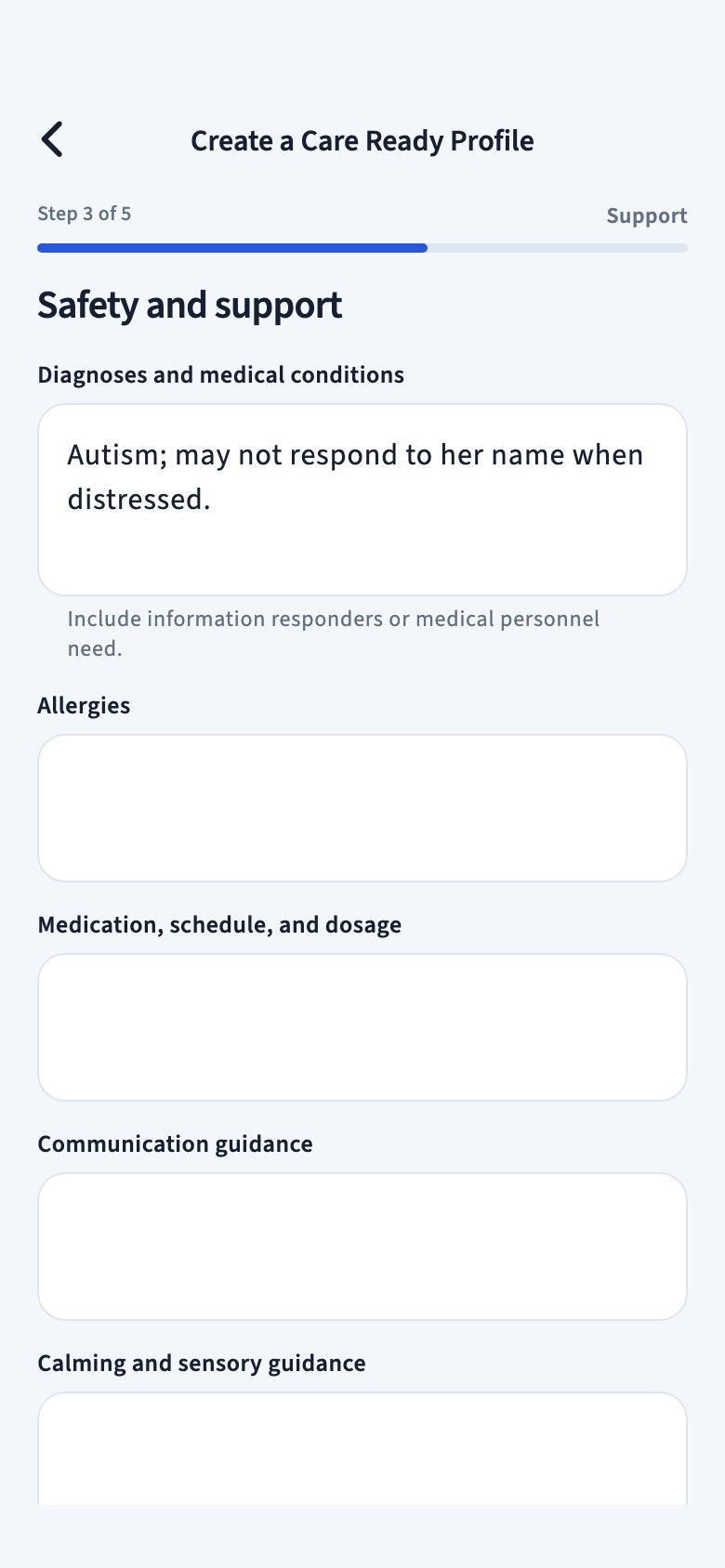
SETUP SCREEN 3 OF 5
Safety and support
Add known medical conditions, allergies, and medications. Include how the person communicates and what helps them feel calm. For example: “Use short sentences and give Maya time to answer.”
Farther down, switches cover risks such as being drawn to water or not being able to swim. Turn on each one that applies; these appear as red warnings near the top of emergency briefs.
Next: tap Next. You should see Caregivers & Contacts.
Screen 3 with a fictional medical note.Enlarge screenshot
SETUP SCREEN 4 OF 5
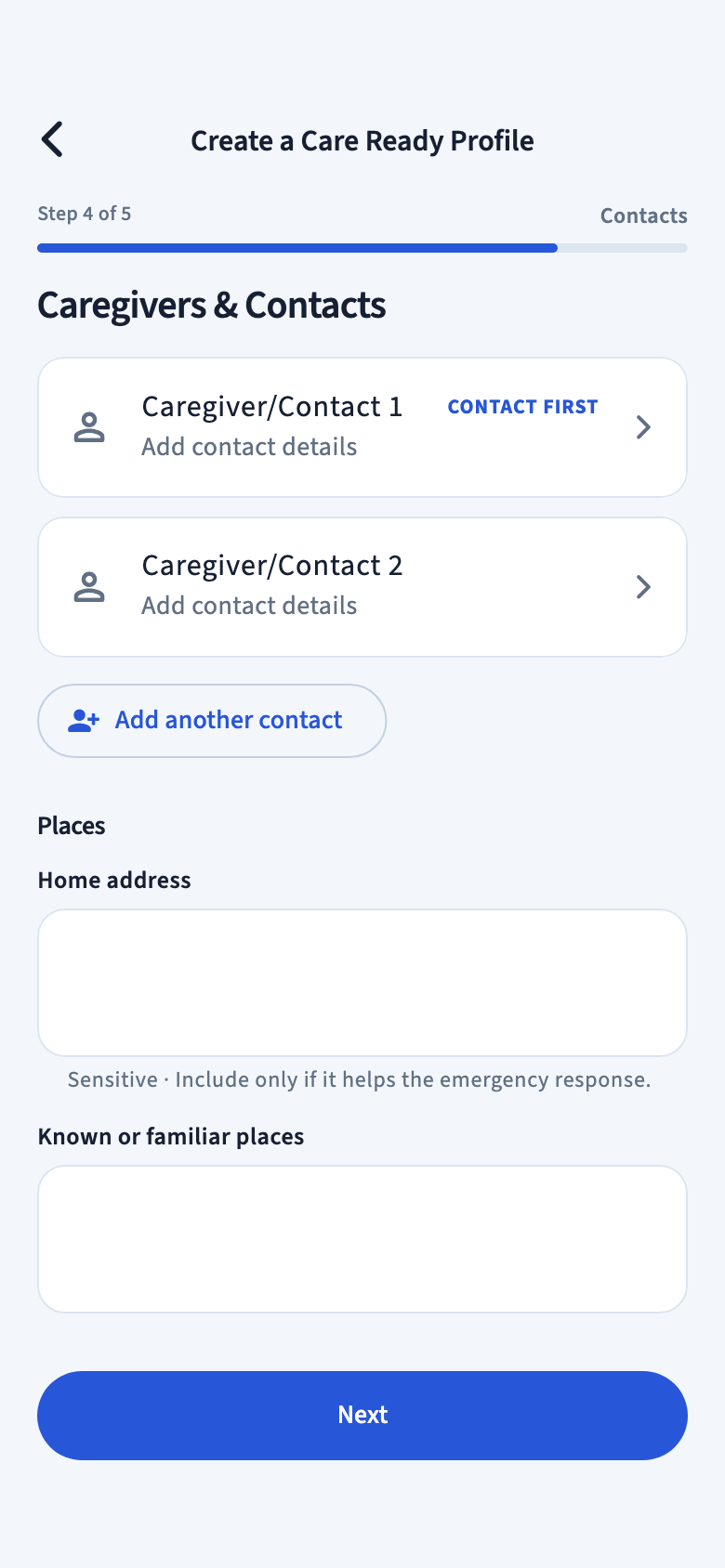
Caregivers & Contacts
Add the people who should be contacted, including yourself if needed, and any places that help, such as a home address or familiar places.
Next: tap Next. You should see Review this Care Ready Profile.
Screen 4 before any contacts are added.Enlarge screenshot
SETUP SCREEN 5 OF 5
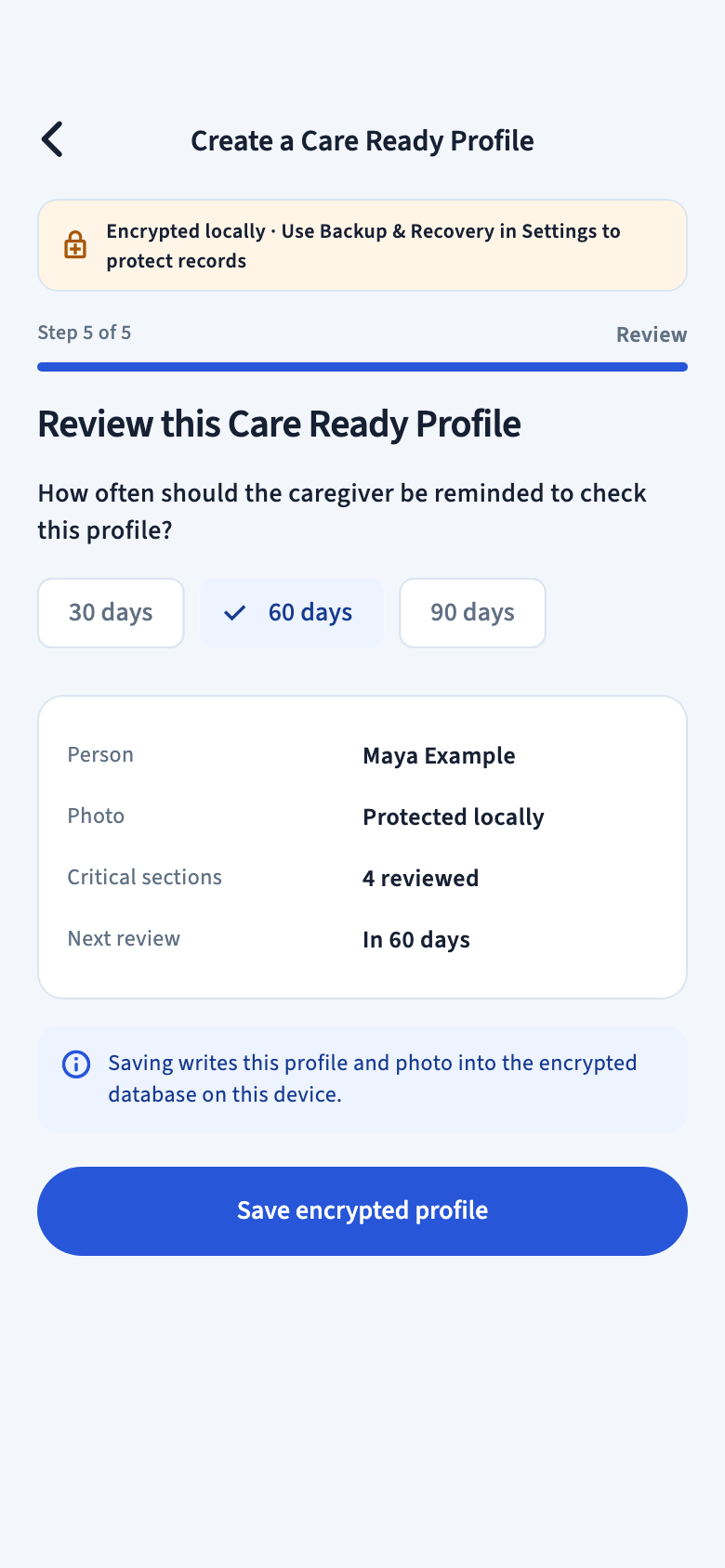
Review this Care Ready Profile
Check the summary. Use the back arrow if you need to correct an earlier screen.
Choose 30 days, 60 days, or 90 days for when you’d like a reminder to check the profile. The starting choice is 60 days. You can update it sooner whenever something changes.
Finish: tap Save encrypted profile. “Encrypted” means the saved information is protected on your phone.
The last screen, with Save encrypted profile.Enlarge screenshot
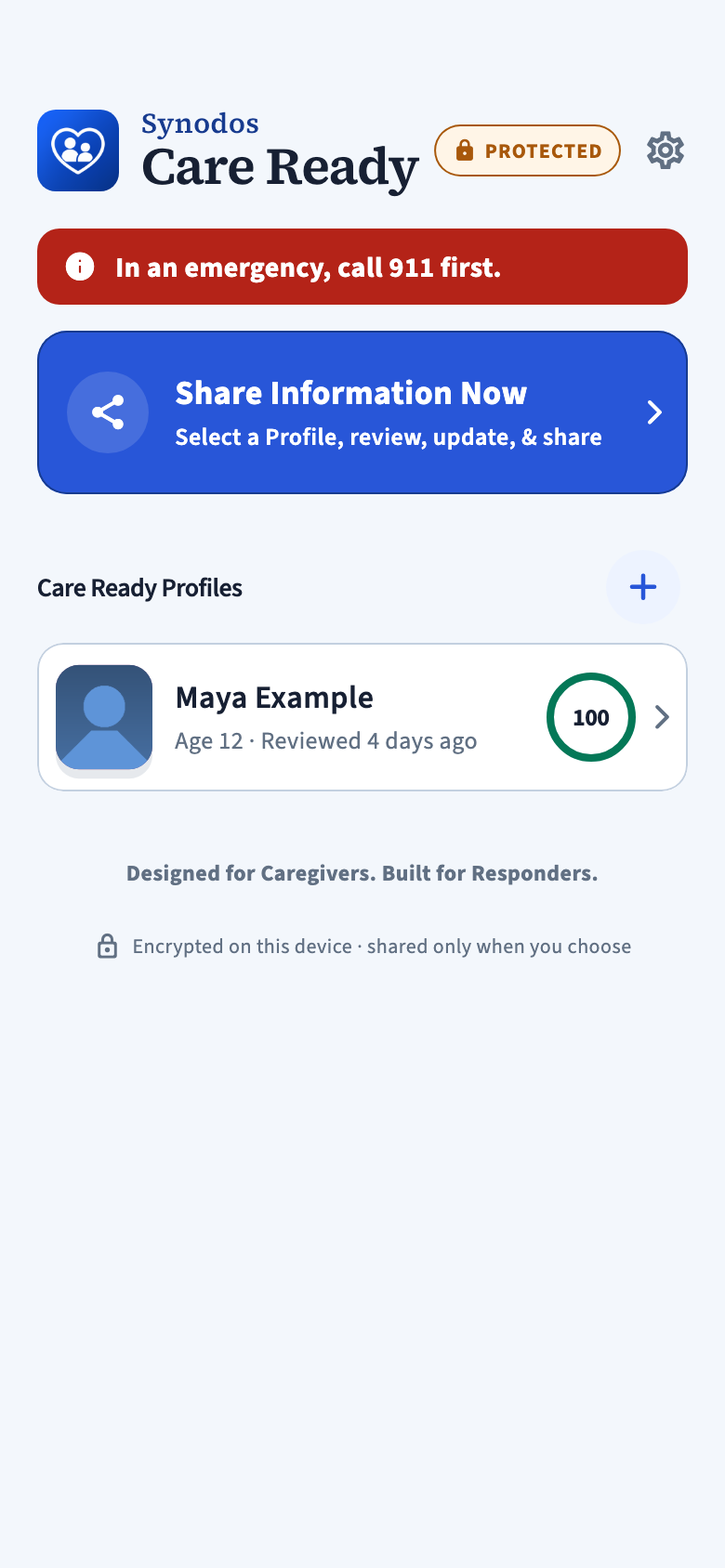
You’re done when: the person’s card appears on Home.
Share Information Now begins a new brief. If an incident is active, its card appears here instead; tap it to return to that incident.
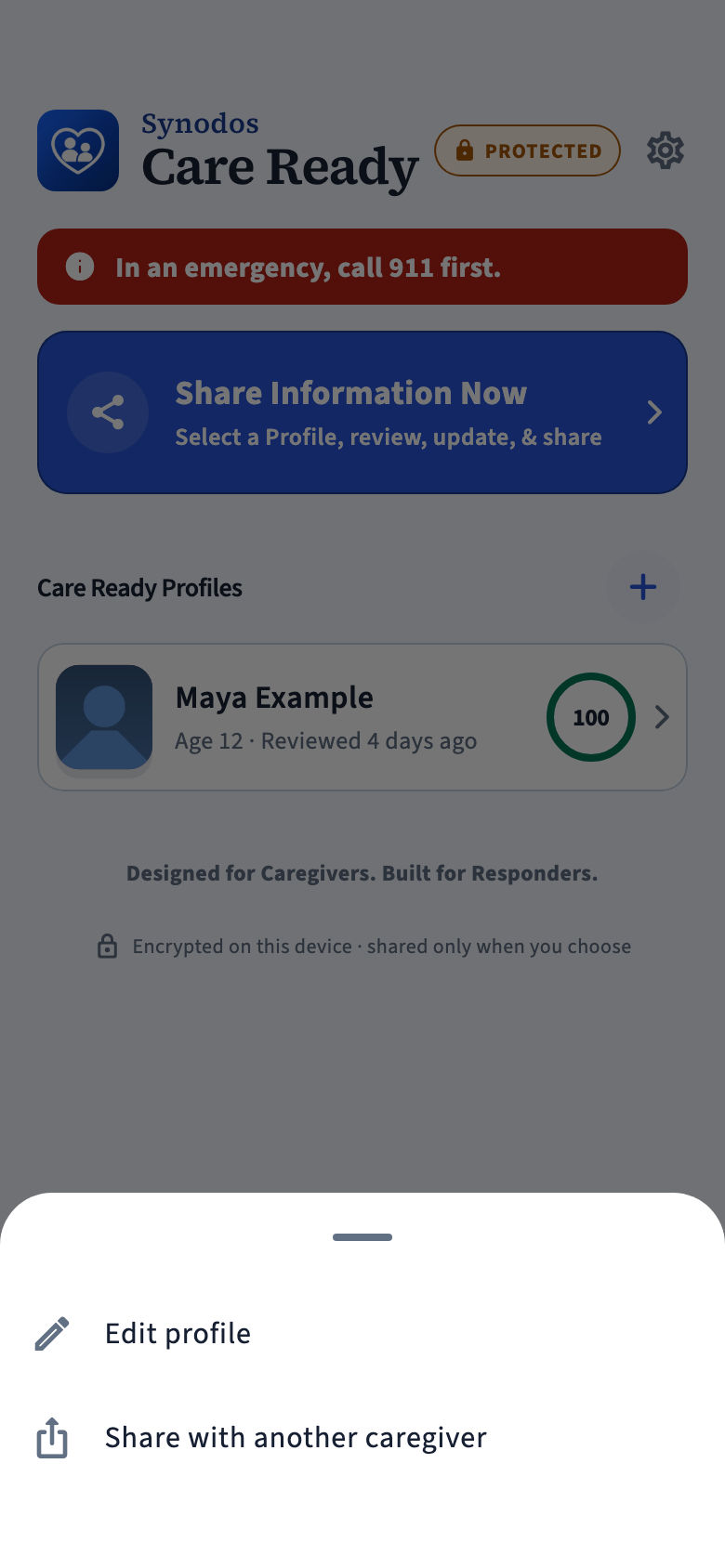
Each person’s card shows a ring with how much of their key information is filled in. Tap the card to edit the profile. Touch and hold it for Edit profile or Share with another caregiver.
The + button beside Care Ready Profiles adds another person.
The gear in the upper-right corner opens Settings.
Home with Maya’s fictional profile.Enlarge screenshot
Add caregivers & contacts
Include the people who should be contacted and the places that are relevant to care.
1
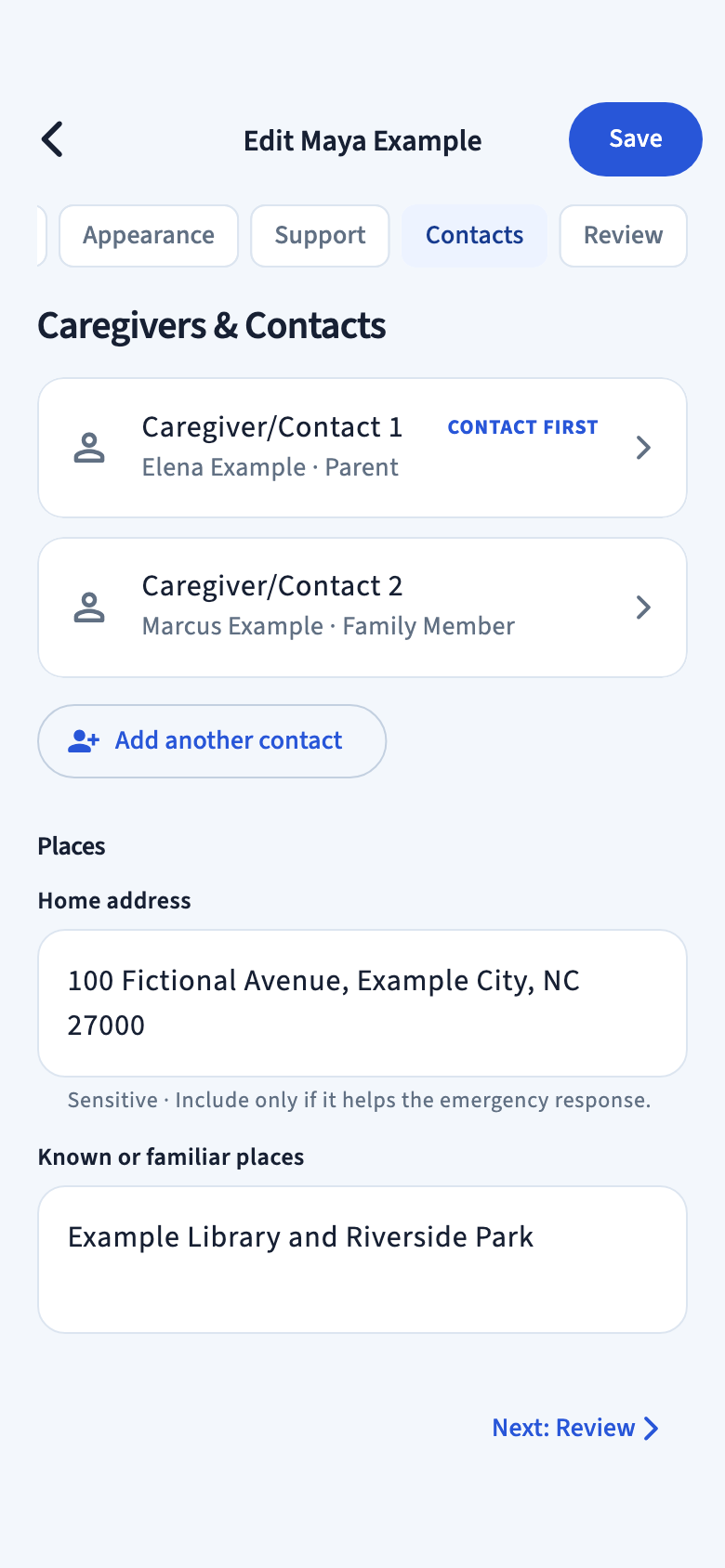
Open Caregivers & Contacts.
While creating a profile, it is screen 4. To update a saved profile, tap the person’s card on Home, then the Contacts tab.
2
Add or review a contact.
Tap a contact card to open it, or tap Add another contact for someone new. Check names, relationships, and phone numbers. Turn on Contact first for the person who should be listed first on incident briefs. Tap Apply contact changes to return to the profile.
3
Review places.
Add a home address and familiar places if they will help a care handoff or an emergency response.
4
Save the profile.
While creating, continue to the review and tap Save encrypted profile. While editing, tap Save at the top of the screen. Contact changes are not kept until the profile is saved.
Editing Maya’s fictional contacts. Save is at the top.Enlarge screenshot
Create & share an everyday brief
Maya’s family member will care for her this afternoon. We’ll choose Respite Care—temporary care that gives the usual caregiver a break—and prepare a summary for that person.
Choose the type of help
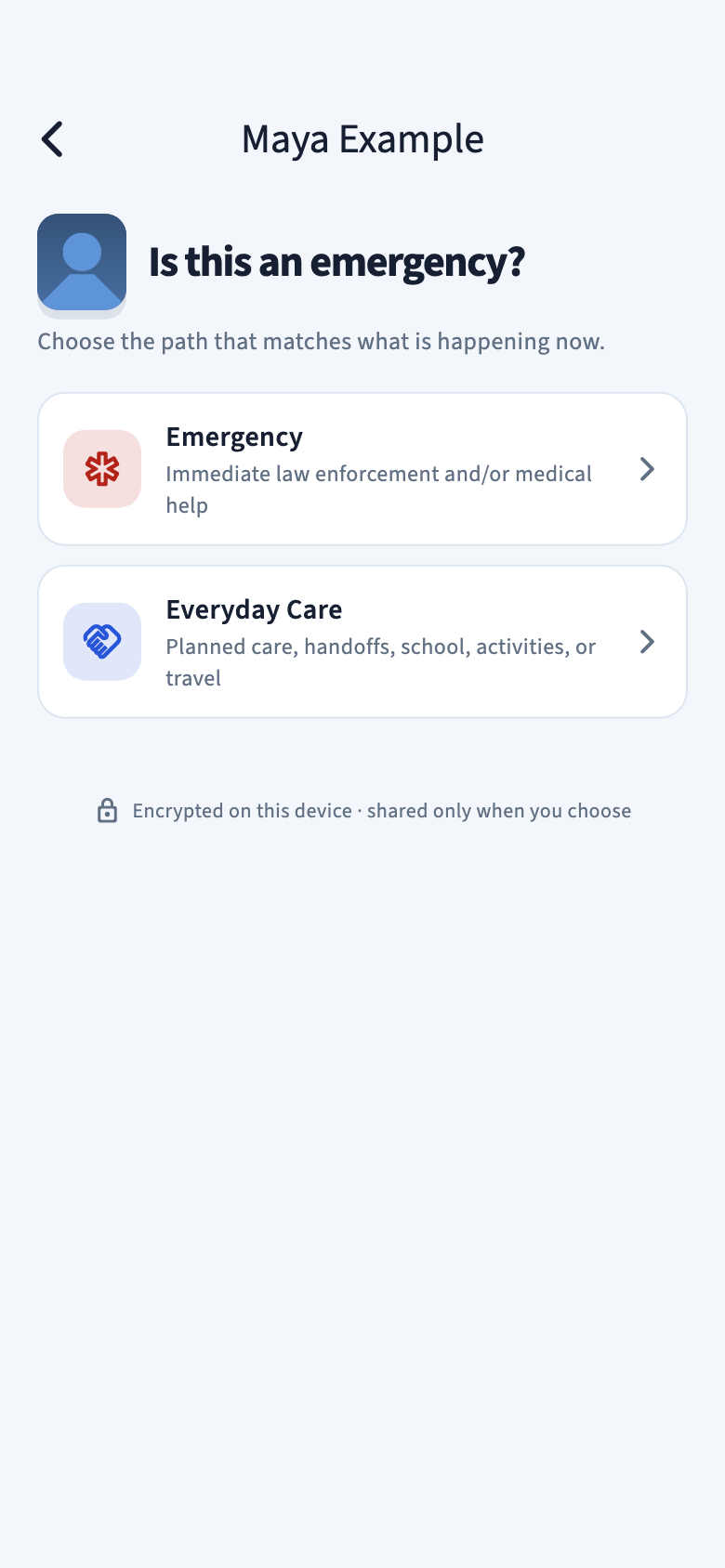
After you choose Maya, Care Ready asks Is this an emergency? Choose Everyday Care for a planned handoff. Emergency is for an urgent incident after you have called for help.
The two routes, shown with fictional information.Enlarge screenshot
1
Choose the person.
On Home, tap Share Information Now. This opens the preparation steps; it does not send anything yet. At Who needs help right now?, choose Maya.
2
Choose Everyday Care, then Respite Care.
Everyday Care is for planned situations such as a temporary caregiver or an appointment.
3
Add what matters for this handoff.
Enter the caregiver’s name, where care will happen, and the start and end time. Add useful instructions, such as “Offer a quiet space if Maya feels overwhelmed.” The app adds relevant information from Maya’s saved profile.
4
Review before creating.
Check the details. Use Review/Update Care Ready Profile if something in the profile needs changing, then tap Create information brief.
5
Open the sharing options.
Tap Share information brief, then Create HTML Preview/Print/Share.
Choose what happens next
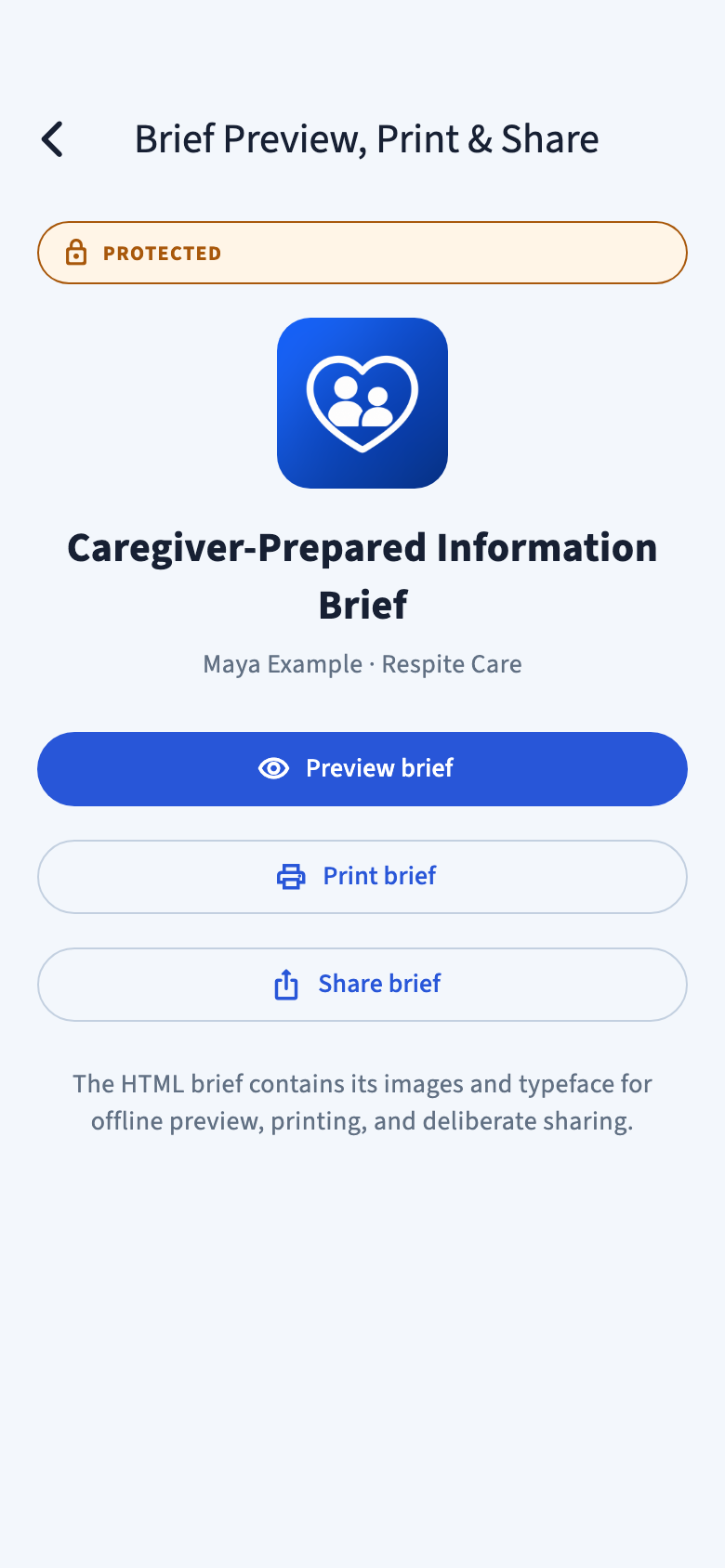
The finished screen calls this a Caregiver-Prepared Information Brief. It is the Everyday Care brief you just made.
Preview brief
Read the finished brief and check what the recipient will see.
Print brief
Open the iPhone’s print options and choose an available printer.
Share brief
Open the iPhone’s share options and choose the intended recipient or save destination.
A shared brief is a readable copy
HTML is a document format that opens in a web browser. The brief contains its images, so it does not need an internet connection once the file has been received and saved. It is not an encrypted backup. Once shared or printed, copies cannot be recalled by Care Ready.
Before relying on it: ask your intended recipient to confirm that they can open and read a practice brief.
The sharing screen for Maya’s fictional respite-care brief.Enlarge screenshot
Practice sending a brief by email
Practice with made-up information first. Email apps and recipients’ devices handle attachments differently, so confirm that the method works for both of you.
1
Tap Share brief.
The iPhone shows the apps and actions available for sharing. Choose an email app you already use, such as Mail. If no email app is available, you will need one set up before following this example.
2
Check the email before sending.
Enter the intended person’s email address. Check it carefully and confirm the brief is attached. Add a message such as “This is a practice Care Ready brief with made-up details. Please let me know if you can open and read it.” Then use your email app’s send button.
3
Have the recipient open the attachment.
They should look for the attached file ending in .html. If their email app will not display it, they can save the file and try opening it in a web browser. They do not need the Care Ready app to read the document.
4
Confirm the result together.
Ask whether they can see the person’s name, picture, and care instructions. If they cannot, try a different sharing method and contact support before relying on it.
You’re done when: the intended recipient confirms that the complete brief opens and is readable. A sent email alone does not confirm that.
Share a profile with another caregiver
If someone else helps care for Maya, such as a parent in another home or a grandparent, they can keep their own copy of her profile in Care Ready on their iPhone. You send an encrypted file and give them a separate sharing code. Care Ready never sends anything on its own, and no account or online service is involved.
What is shared
Everything in Maya’s profile, including her photo, medical details, and contacts. Brief history, active incidents, and other people’s profiles are not included.
Before you share
Once they have a copy, you can’t take it back or change it. Share only with a caregiver you trust. Later changes on either phone stay on that phone; to update their copy, share again.
Send a copy
1
On Home, touch and hold Maya’s card, then tap Share with another caregiver. You can also use the share button in Settings → Manage Profiles.
2
Read what’s included, then tap Create encrypted copy. Unlock with Face ID, Touch ID, or your passcode when asked.
3
Choose how to send the file: AirDrop, Messages, or Mail. The file’s name does not include Maya’s name.
4
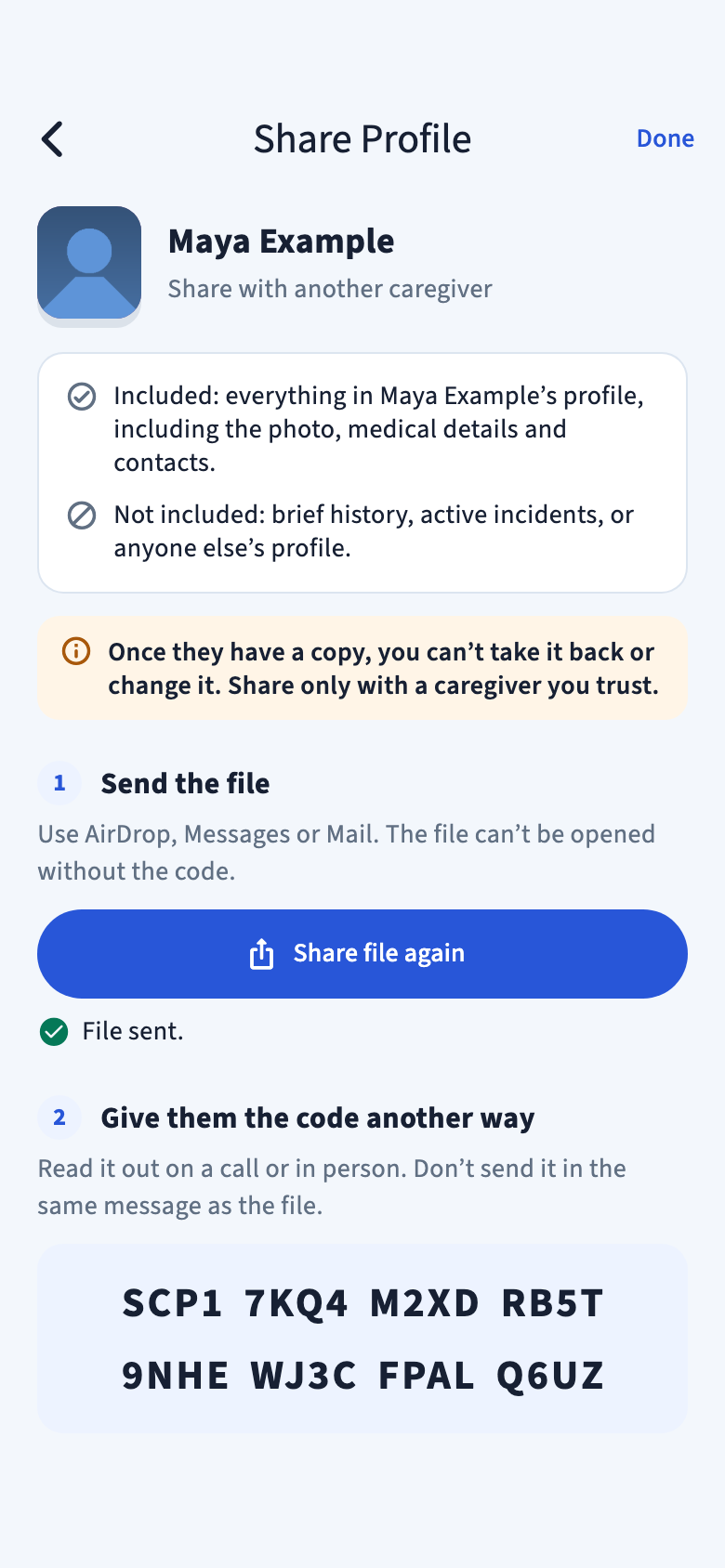
Give them the sharing code another way. Read it out on a call or in person, and don’t send it in the same message as the file. The code starts with SCP1 and is shown only on this screen.
Touch and hold a person’s card on Home.Enlarge screenshot
Keep the file and code apart
The file can’t be opened without the code. Sending them separately means that someone who gets one without the other can’t read Maya’s information. The code in this picture is fictional and opens nothing.
You’re done when: the other caregiver sees Maya on their Home screen.
The sharing code appears after the file is sent. This code is fictional.Enlarge screenshot
Receive a copy
1
Make sure Care Ready is installed and set up on your iPhone.
2
Tap the file in AirDrop, Messages, or Mail and choose Care Ready. You can also tap Receive a shared profile in Settings → Manage Profiles (or on Home before you’ve added anyone) and pick the file from Files.
3
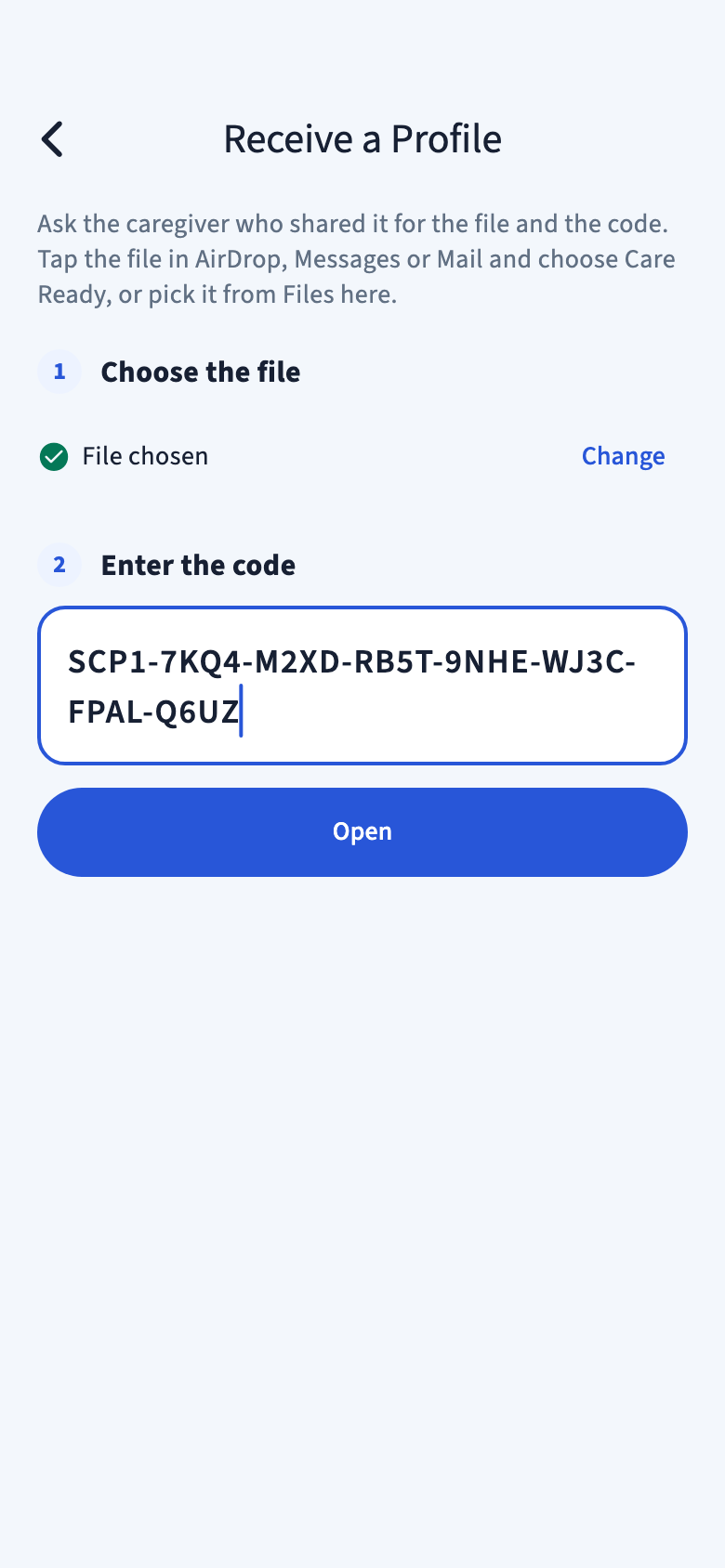
Unlock when asked, then enter the sharing code and tap Open. Capital letters, dashes, and spaces don’t matter.
4
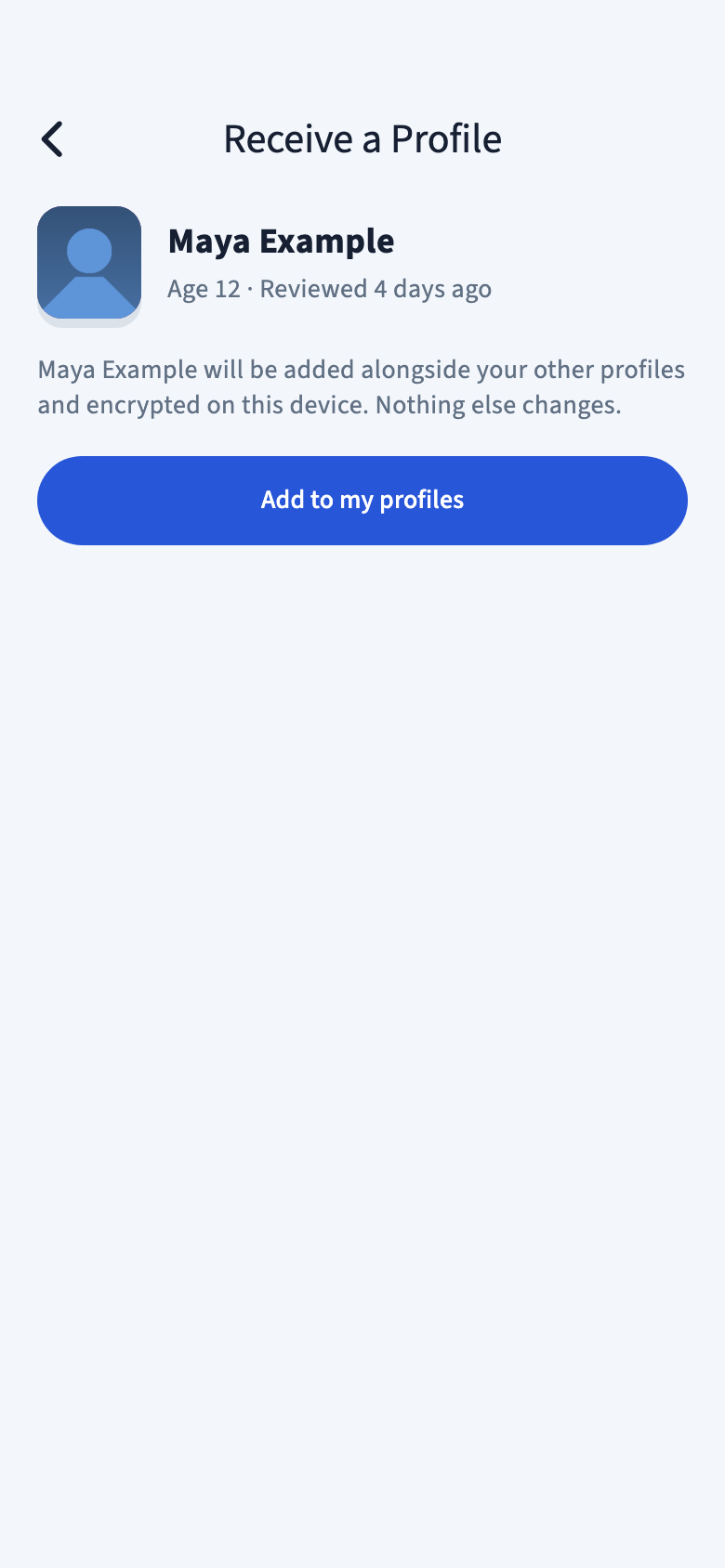
Check the name and photo, then tap Add to my profiles.
Receiving a copy on the other caregiver’s iPhone.Enlarge screenshot
If you already have Maya’s profile
Care Ready shows when each copy was last reviewed. Choose Keep mine, or Replace with shared copy to use theirs. Replacing can’t be undone, and it isn’t possible while Maya has an active incident on your phone.
A shared copy is not a backup
Keep making your own protected backups, as described in Back up & recover.
Check the name and photo before adding.Enlarge screenshot
During an emergency
Call 911 first
Use the iPhone’s Phone app to dial 911, or use Emergency SOS. If your iPhone is locked, tap Emergency on the passcode screen, dial 911, then tap the call button. Care Ready’s red strip on Home is a reminder; it does not place calls.
You do not need to open Care Ready, create a profile, or prepare a brief before calling. Care Ready does not place a call, send information automatically, or replace first responders.
After calling, prepare information for responders
When it is appropriate to do so, create an emergency brief with the information responders need.
1
Start or return to an incident.
For a new incident, tap Share Information Now, choose the person, then choose Emergency and the situation that fits. If Home shows an active incident card instead, tap it to return to that incident.
2
Enter current facts and review them.
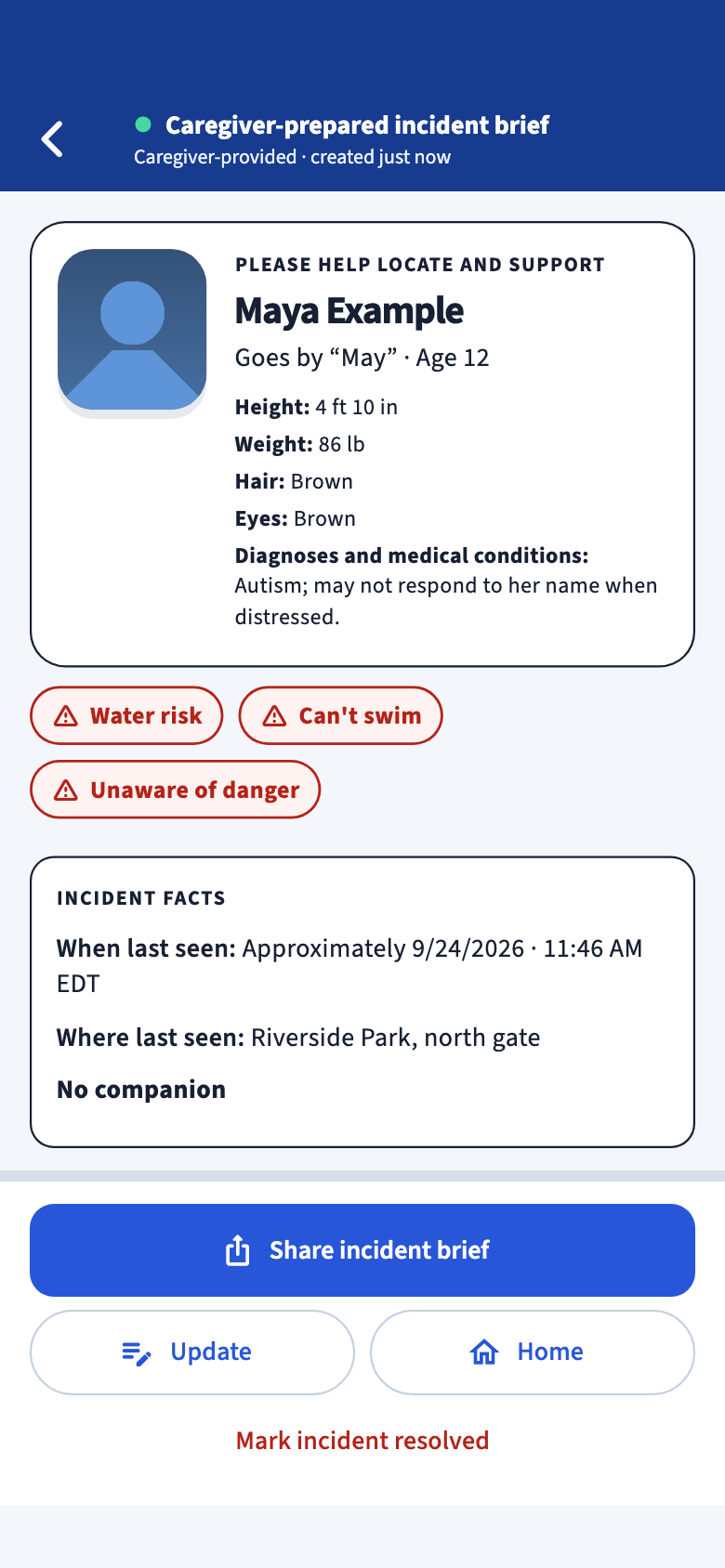
Add what you know now, such as clothing and where the person was last seen, and tap Create incident brief. The brief leads with the person’s photo and any red warnings, such as Water risk or Can’t swim, then the incident facts.
3
Prepare the copy for responders.
Tap Share incident brief, then Create HTML Preview/Print/Share. The finished screen calls this a Caregiver-Prepared Incident Brief. Review it before sharing with the intended recipient.
4
Close the incident when it is over.
Use Mark incident resolved, then Resolve incident. An active incident should be resolved before returning to a routine care flow.
A fictional incident brief. Warnings and incident facts come first.Enlarge screenshot
Keep a protected backup
A backup is a protected copy of the profiles and other records saved in Care Ready. You need the file and its matching recovery code to restore that information. A brief you share, or a profile copy you give another caregiver, is not a backup.
The encrypted backup file
Files is the iPhone app used to save and find documents. You choose where the backup file goes.
The separate recovery code
This code unlocks this backup. Keep it separately—for example, written down in a secure place. You need both the file and the code.
Where to find backup and recovery
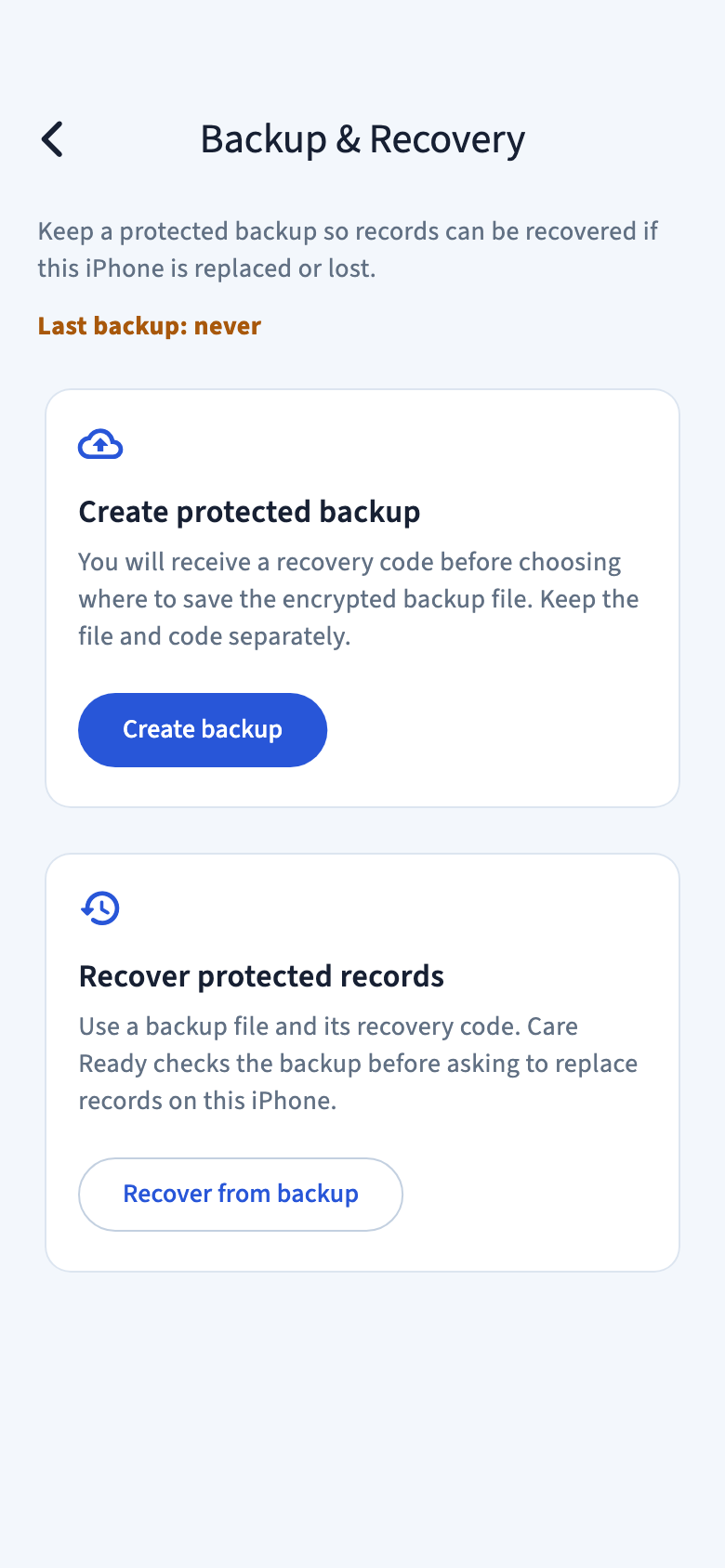
From Home, open Settings → Backup & Recovery. Choose Create backup to save a protected copy. Choose Recover from backup only when you intend to replace the records currently on this iPhone. If the app cannot open protected records at startup, its locked screen also offers Recover from backup.
Backup & Recovery in Settings.Enlarge screenshot
If Care Ready opens locked
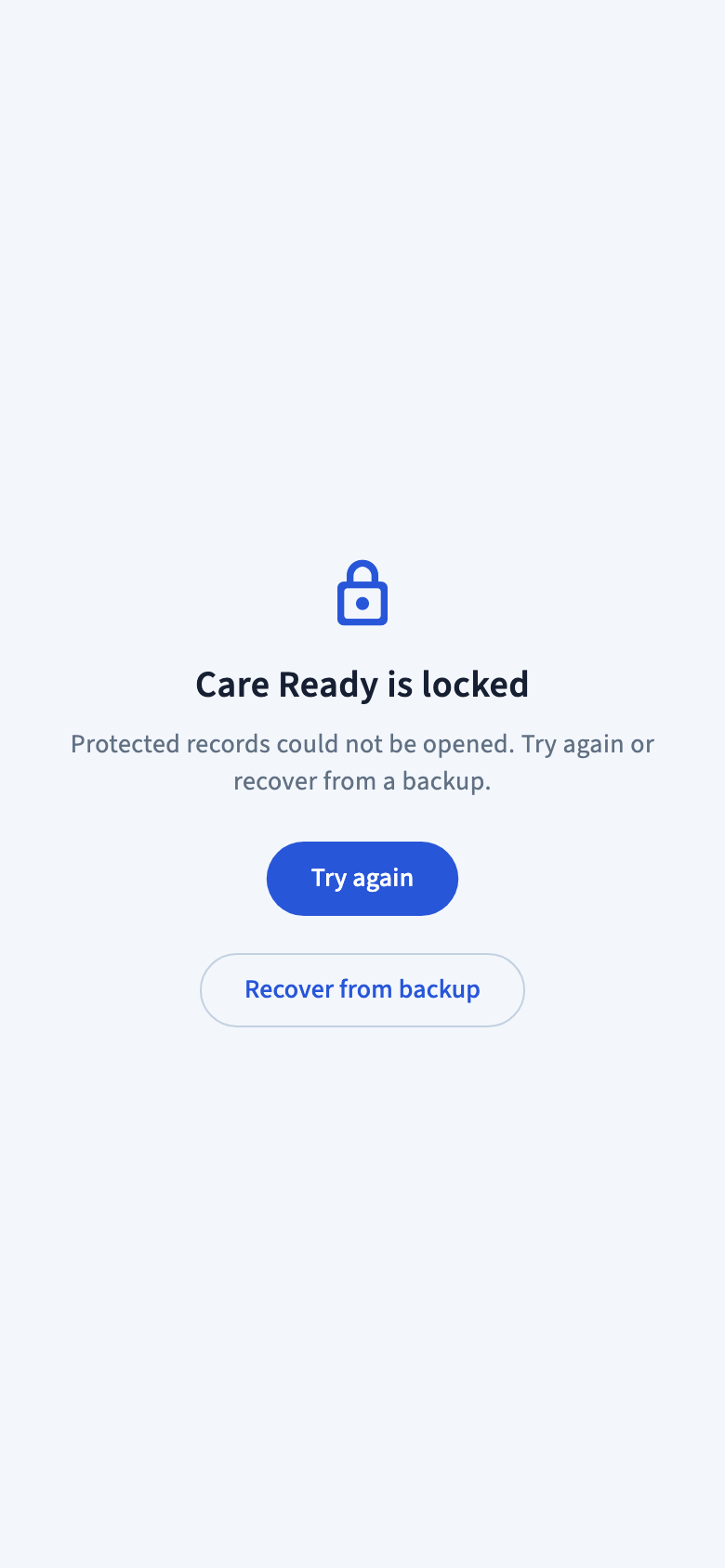
Try again first. If the app still cannot open your protected records and you have a backup file with its matching recovery code, the locked screen offers Recover from backup. Recovery replaces records on this iPhone; read the steps below before continuing.
The locked screen, from a fictional-data test. You can reach recovery without opening Settings.Enlarge screenshot
Create a backup
1
On Care Ready’s Home screen, tap the gear in the upper-right corner. Tap Backup & Recovery.
2
Tap Create backup. Unlock with Face ID, Touch ID, or your iPhone passcode when asked.
3
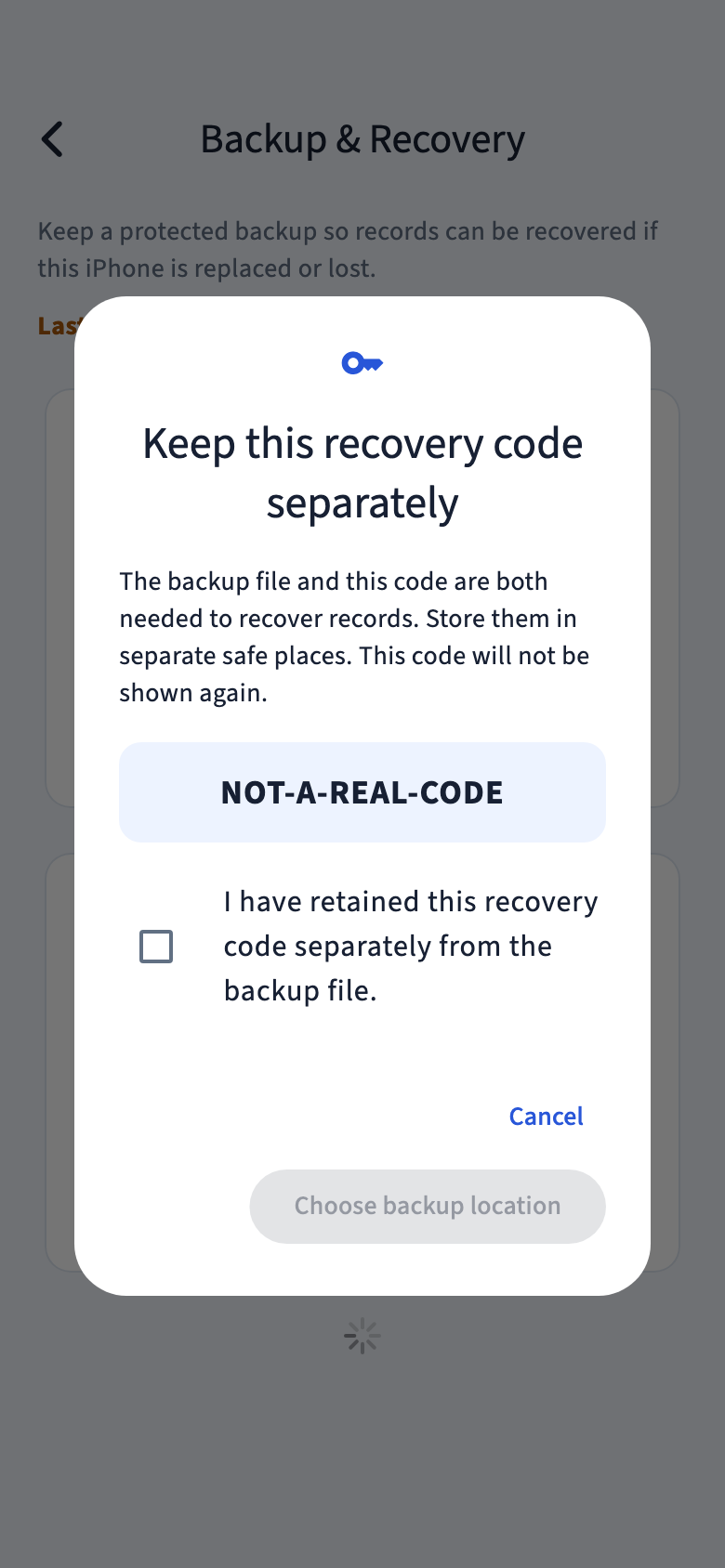
At Keep this recovery code separately, keep the code safely. It will not be shown again, and Synodos cannot recover a lost code.
4
Select I have retained this recovery code separately from the backup file. Then tap Choose backup location. The iPhone’s file-saving screen opens.
5
Choose a folder you will recognize and finish saving. Note the file’s name and where you saved it.
6
Open the iPhone’s Files app, find that folder, and check that the backup file is there. Keep the matching recovery code separately.
You’re done when: you can find the saved file and its separate recovery code. Seeing the file confirms that it was saved; it does not prove that recovery has been tested.
Keep the code separate
The app shows a recovery code before you save the backup file. Record it accurately, and store it apart from the file. The code in this picture is fictional and cannot recover anything.
A fictional recovery-code example. This is not a usable code or a completed backup.Enlarge screenshot
What happens if you lose this phone?
A backup saved only under On My iPhone may be lost with the phone. To protect against that, keep a copy somewhere you can access without this phone, such as an iCloud Drive location you control. Files may offer different locations depending on your setup.
Keep the recovery code somewhere you can also access without the phone. Do not store it together with the backup file.
Advanced: replace saved records using a backup
Restoring a backup replaces the information currently saved in Care Ready.
This does not add the backup’s records alongside your current ones. Changes made after that backup may be lost. Continue only if that is what you intend. Your display and measurement settings stay the same.
1
From Home, open Settings → Backup & Recovery → Recover from backup. If Care Ready cannot open your protected records at startup, tap Recover from backup on the locked screen instead. Unlock with Face ID, Touch ID, or your iPhone passcode when asked.
2
Enter the matching recovery code and tap Choose backup file. Select the backup in Files.
3
Read Replace all protected records? and check its profile, brief-history, and active-incident counts.
4
Only if you intend to replace those records, select I understand this replaces all protected records on this device. Then tap Replace and restore.
5
Review the result and open the restored profiles. If the app reports an uncertain result, close and reopen Care Ready before continuing.
Both recovery routes need the backup file and its matching recovery code. Practice with made-up records first, and do not delete or reset the app to practice with your only copy of important information. Contact support if recovery does not work or the result is unclear.
Keep information current
Update a person’s profile
Tap their card on Home. The editor opens as Edit Maya Example, with tabs for Person, Appearance, Support, Contacts, and Review. Change any tab, then tap Save at the top. If you leave without saving, Care Ready asks Discard changes?; choose Keep editing to go back.
Manage profiles
Open Settings → Manage Profiles to see everyone in Care Ready. From there you can share a profile with another caregiver, receive a shared profile, or delete a profile.
Find a previous brief
Open Settings → Brief History and select a brief. Newer HTML briefs show Preview stored brief and Print stored brief; older PDF briefs open in a PDF viewer. Use Share brief when available. A previous brief reflects the facts saved at that time.
Adjust appearance
Open Settings → Appearance and choose System, Light, or Dark.
Refresh your backup
Create a new backup after important updates, keeping its recovery code separately. Keep a known usable backup until you have checked the new one.
When something does not work
I see “Care Ready is locked”
Tap Try again and unlock with Face ID, Touch ID, or your iPhone passcode when asked. Care Ready needs an iPhone passcode to protect local information. If the locked screen offers Recover from backup and Try again does not open your records, you can use a backup file with its matching recovery code. Recovery replaces records on this iPhone. Read the recovery steps.
I cannot continue the first profile
Check that you added a photo, a full name, and a complete date of birth in MM/DD/YYYY format.
The recipient cannot open the brief
The brief is sent as an attached document. Ask the recipient to save the attachment and open it in a web browser. Some email or messaging apps do not display this kind of document directly. Try a practice brief before you rely on a sharing method.
The sharing code doesn’t work
Check that you have the code that goes with this file: each copy has its own code. Capital letters, dashes, and spaces don’t matter. If the caregiver shared again, use the newest file with its newest code. If it still fails, ask them to share a new copy.
Care Ready doesn’t appear when I tap the file
Make sure Care Ready is installed and has been opened once on this iPhone. You can also save the file to Files, then open Settings → Manage Profiles → Receive a shared profile and pick it there.
My backup does not restore
Check that the recovery code belongs to the selected backup. Follow the app’s result message. Do not reset or uninstall the app to troubleshoot. Contact support if you are unsure what happened.
Need a hand?
Tell us which step you reached, what you expected, and what happened. Include your app version and iPhone model if available. Use made-up information in screenshots and leave out recovery codes, sharing codes, and private records.